Technical Summary 💬 FAQs & Solutions ↓
Streaming video and media files directly in your web browser often leads to intrusive banner popups, aggressive adult redirects, and high CPU throttling. By bridging your browser with your local VLC Media Player via a Native Messaging Host, the VLC Link Opener extension allows you to right-click any video or audio link and stream it instantly with 0 ads, 0 popups, and dedicated GPU hardware acceleration.
Download VLC Link Opener Package
✨ Website Users: You can download and extract the package directly with 0 password required. The password below is only needed if you downloaded from GitHub.
ziplootvlc124
🌟 Why Use VLC Link Opener? (Key Benefits & Use Cases)
Sending media streams directly from web pages to your desktop VLC player brings massive advantages over standard in-browser playback:
- 🛑 100% Ad-Free & Popup-Free Streaming: Avoid annoying web popups, banner ads, and intrusive video player overlays. Right-click any direct media link and watch it instantly inside VLC without opening ad-filled streaming web pages.
- ⚡ Instant Streaming (Zero Download Waiting): No need to wait 10–30 minutes for a 2 GB or 5 GB video file to finish downloading! VLC begins playing the live media stream immediately within 2 seconds.
- 💻 GPU Hardware Acceleration & 4K HDR: Browsers heavily throttle CPU and RAM during high-bitrate video decoding. VLC leverages your PC's dedicated GPU hardware acceleration for silky-smooth 1080p, 4K, and 60 FPS HDR playback.
- 🎧 Full Audio Track & Subtitle Control: Easily toggle dual-audio tracks, dubbed voice streams, and attach custom external
.srtsubtitles directly inside VLC player.
🚀 Option A: 1-Click Auto-Installer via setup.bat (Fastest)
Inside the downloaded release zip file, you will find an automated installer script named setup.bat. You can configure your entire extension environment with a single click:
- Extract the downloaded
vlc-link-opener.zipto any permanent folder on your drive (e.g.C:\vlc-opener\orD:\tools\vlc-opener\). - Right-click on
setup.batand select "Run as administrator". - The batch script will automatically detect your project folder, configure the JSON manifest, and register the Native Messaging Host in your Windows Registry!
ℹ️ Notice regarding Windows Defender SmartScreen / UAC Prompt:
When running setup.bat, Windows SmartScreen or User Account Control (UAC) may display a blue protection dialog. This happens because registering a Chrome Native Messaging Host requires modifying the Windows Registry key (HKEY_CURRENT_USER\Software\Google\Chrome\NativeMessagingHosts\com.vlc.open). Simply click "More info" ➔ "Run anyway".
🛠️ Option B: 100% Transparent Step-by-Step Manual Setup (No Scripts)
If you prefer not to run automated .bat batch files, you can configure every single step manually using standard Windows tools (Notepad and Registry Editor). Follow this comprehensive step-by-step guide:
Prerequisites Checklist
Make sure your PC has Python and VLC player installed:
- Python 3.x: Download from python.org. (CRITICAL: Ensure "Add python.exe to PATH" is checked during installation!)
- VLC Media Player: Download and install from videolan.org.
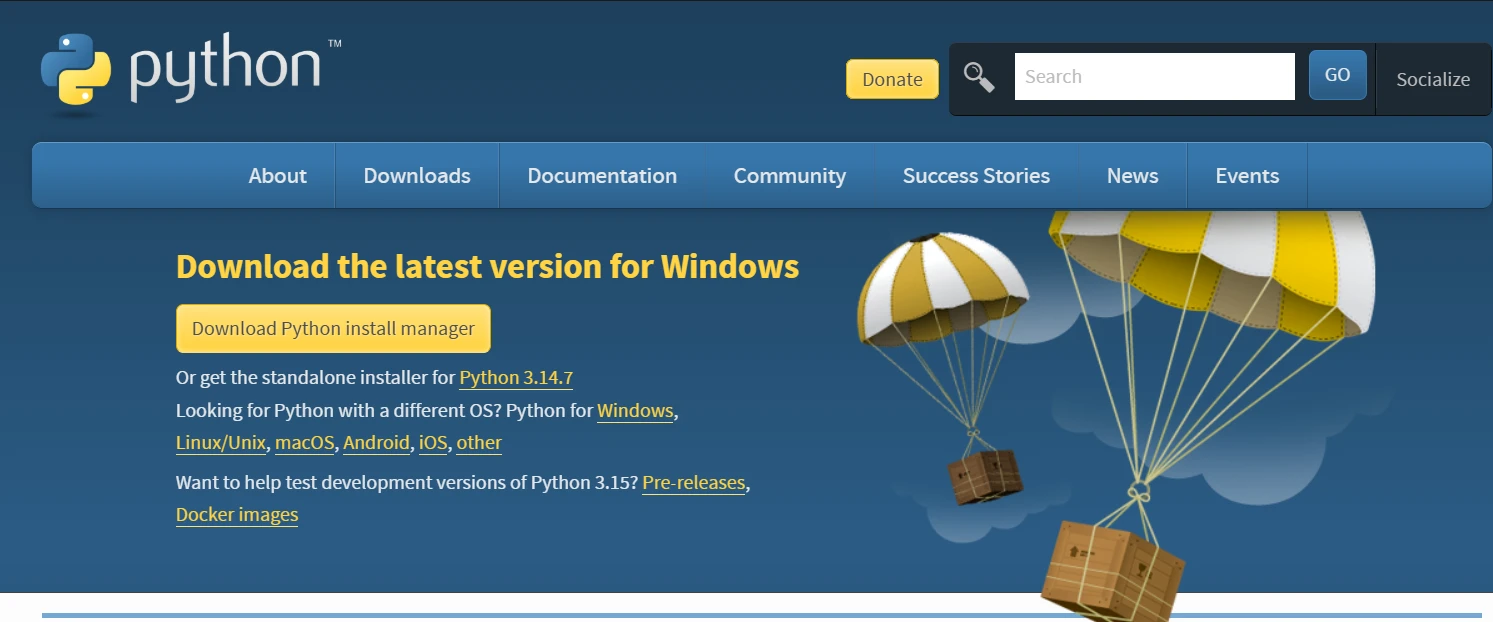
Figure 1: Installing Python 3.x — Always check "Add python.exe to PATH" to ensure native messaging communicates seamlessly.
Step 1: Unzip & Verify Project Folder Structure
Unzip the setup package to any folder or drive of your choice (e.g. C:\, D:\, E:\, or Downloads). The root folder contains two main subdirectories: extension and native_host:
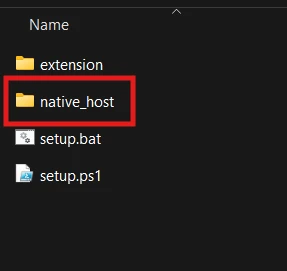
Figure 2: Root project directory containing the browser extension folder and native host configuration folder.
Step 2: Copy the Full Path of vlc_host.bat
Open the native_host folder in Windows File Explorer. Right-click on vlc_host.bat and click "Copy as path" (or press Ctrl + Shift + C on Windows 11):
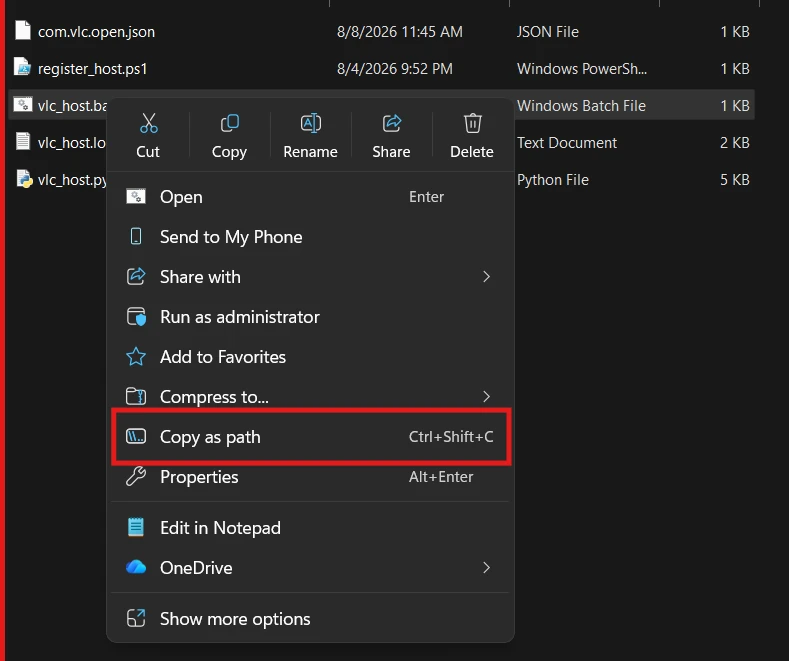
Figure 3: Copying the exact file path of vlc_host.bat from the Windows File Explorer context menu.
Step 3: Configure com.vlc.open.json Manifest
Inside your native_host folder, you will find com.vlc.open.json and vlc_host.bat:
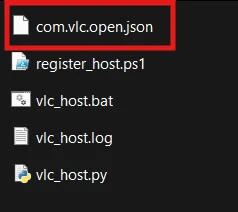
Figure 4: Inside the native_host folder — containing com.vlc.open.json manifest, vlc_host.bat, and vlc_opener.py.
Open native_host/com.vlc.open.json using Notepad or any code editor:
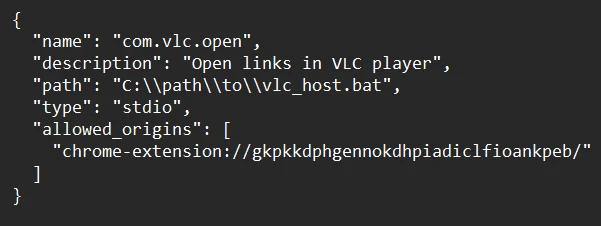
Figure 5: Initial JSON manifest showing the default placeholder path on line 4.
Update line 4 "path" with the file path of your vlc_host.bat file. Ensure that every single backslash \ in your path is written as a double backslash (\\):
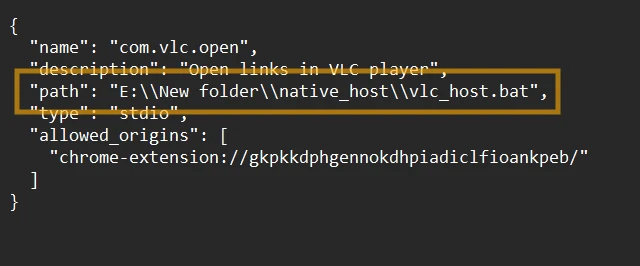
Figure 6: Properly formatted JSON manifest with escaped double backslashes (\\). Save the file with Ctrl + S.
Step 4: Register Native Messaging Host in Windows Registry (regedit)
Press Win + R on your keyboard, type regedit, and press Enter to launch Registry Editor:

Figure 7: Opening the Windows Run dialog to launch Registry Editor.
In Registry Editor, navigate to the Chrome Native Messaging Hosts key:
HKEY_CURRENT_USER\Software\Google\Chrome\NativeMessagingHosts(For Microsoft Edge: HKEY_CURRENT_USER\Software\Microsoft\Edge\NativeMessagingHosts)
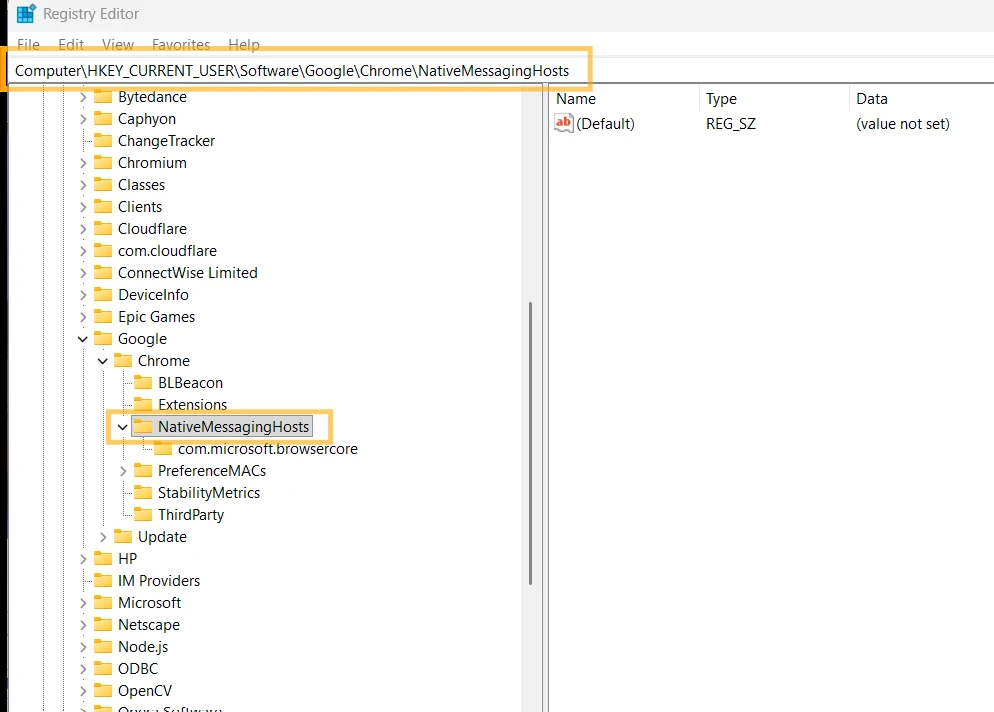
Figure 8: Navigating to HKEY_CURRENT_USER\Software\Google\Chrome\NativeMessagingHosts.
Right-click NativeMessagingHosts ➔ New ➔ Key, and name it com.vlc.open. Double-click the (Default) value in the right pane, and enter the path to your com.vlc.open.json file:
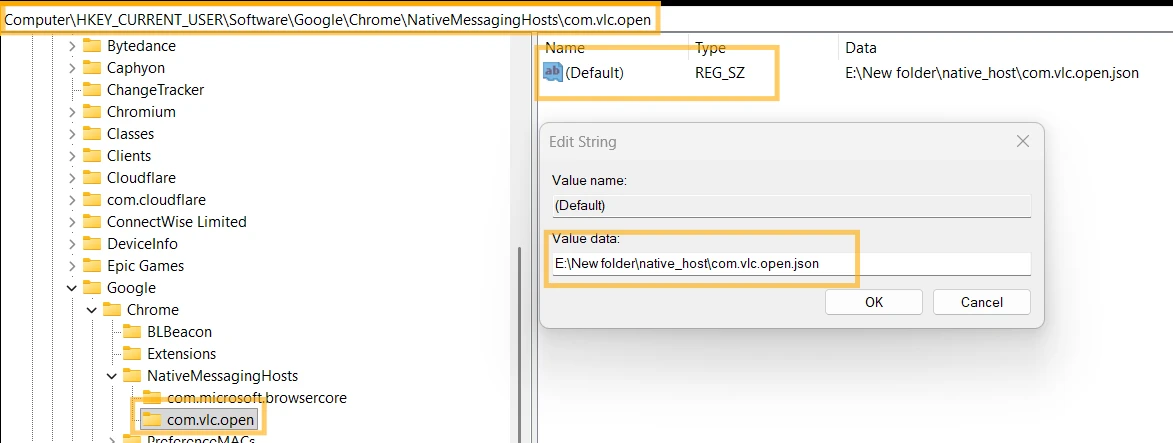
Figure 9: Setting the (Default) string value without quotation marks. Click OK.
Step 5: Load the Extension in Chrome / Edge
Open Google Chrome (or Edge/Brave) and navigate to chrome://extensions in your URL bar:
- Turn ON the Developer mode toggle in the top-right corner.
- Click the Load unpacked button in the top-left corner.
- Select the
extensionfolder from your setup project.

Figure 10: Enabling Developer Mode and loading the unpacked extension folder in Google Chrome.
Step 6: Test Native Host Connection Status
Click the VLC Link Opener icon in your browser extension toolbar:
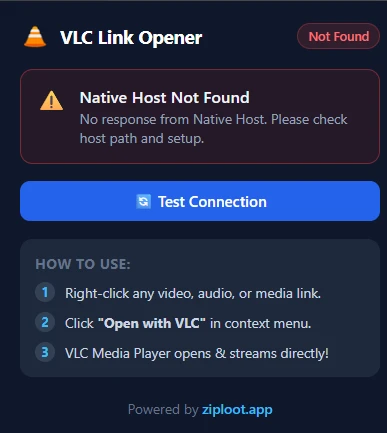
Figure 11A: Host Not Found (Registry key missing or JSON path wrong).
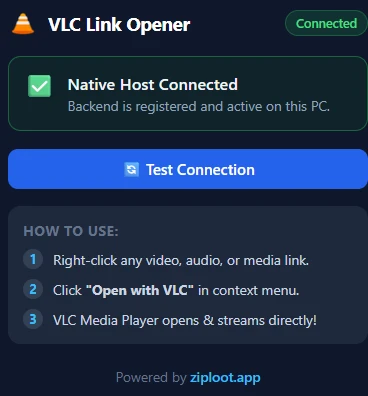
Figure 11B: Native Host Connected Successfully!
Step 7: Stream Video Links Instantly in VLC
Browse to any media website, video catalog, or direct download link. Right-click on any video link and select "Open with VLC - ziploot.app":
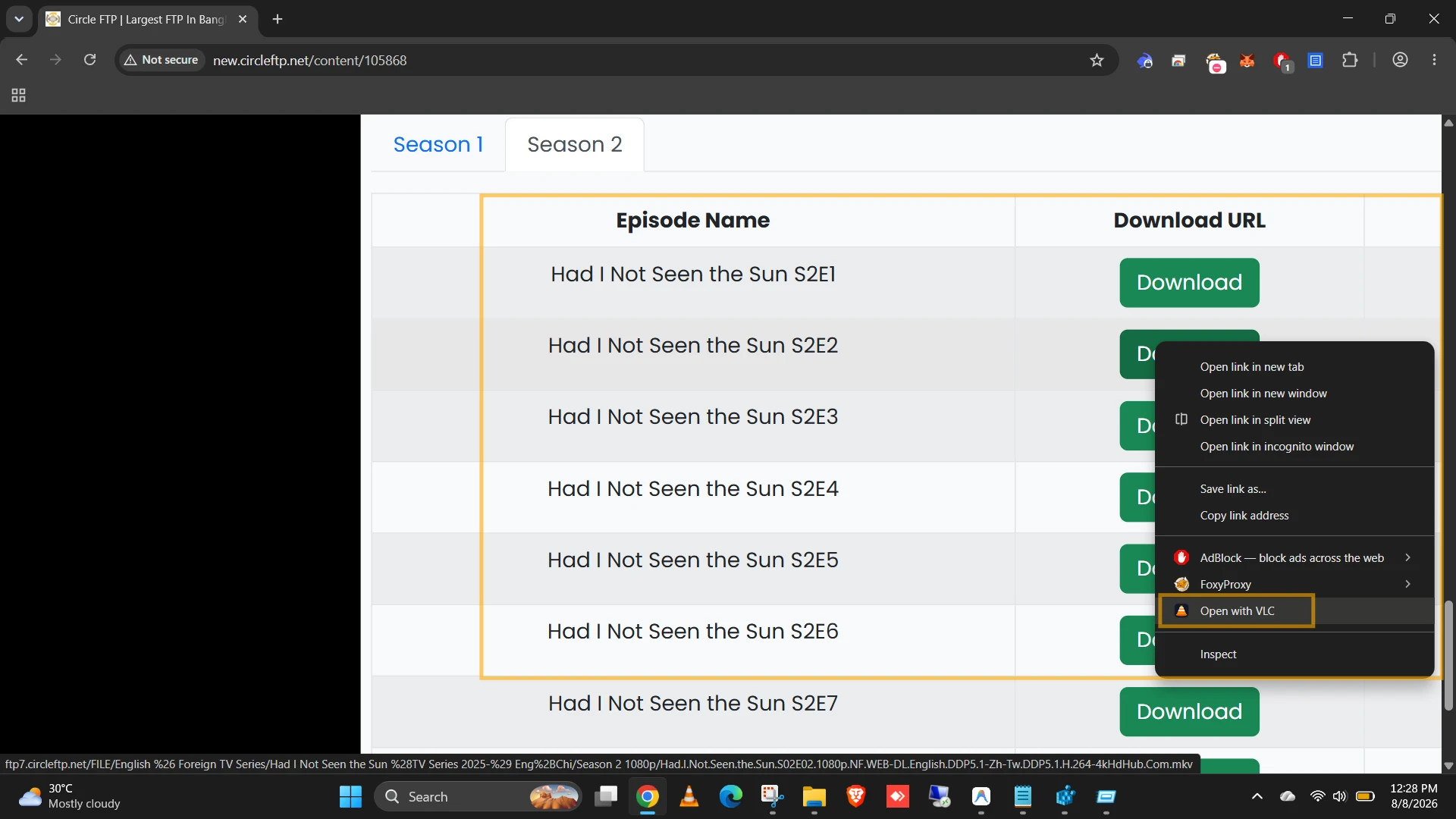
Figure 12: Right-clicking any media stream to launch VLC Player instantly with hardware acceleration!
🛠️ Common Pitfalls & Troubleshooting Matrix
| Symptom / Error | Root Cause | Solution |
|---|---|---|
Specified native messaging host not found |
Quotation marks (") in Registry Value Data |
Remove quotes from Registry Editor Value Data (e.g. E:\tools\native_host\com.vlc.open.json). |
Native Host Not Found |
Double backslash (\\) missing in JSON |
Ensure JSON file uses \\ for every backslash in path. |
| Python error in terminal | Python not added to Windows PATH | Reinstall Python and check "Add python.exe to PATH". |
| Extension status remains red | Browser cached old connection state | Click Reload (🔄) on extension card in chrome://extensions and click Test Connection. |
💬 Frequently Asked Questions (FAQs)
Q1: Is VLC Link Opener 100% free and open-source?
Yes! VLC Link Opener is 100% free forever ($0/month) and completely open-source under the MIT License with zero telemetry or background data collection.
Q2: Why does Windows SmartScreen warn when running setup.bat?
Windows Defender SmartScreen flags batch files that modify the Windows Registry. Because registering a Chrome native messaging host requires writing the registry key com.vlc.open, running setup.bat as administrator triggers this standard Windows security prompt.
Q3: Does VLC Link Opener support Microsoft Edge and Brave?
Yes! All Chromium-based browsers (Google Chrome, Microsoft Edge, Brave, Opera, Vivaldi) support Native Messaging Hosts seamlessly.