Technical Summary 💬 FAQs & Solutions ↓
Renting paid Windows VPS or cloud desktops usually incurs monthly subscription costs. By leveraging GitHub Codespaces, developers get 120 hours of free runtime monthly on virtual machines with 4 vCPUs and 16 GB of RAM. By executing the dockurr/windows Docker container inside Codespaces, you can run a full Windows 11 operating system inside your web browser. Combined with AnyDesk and RDP connections, you can access your Windows cloud desktop from any device for $0/month.
🚀 1-Click Multi-OS Auto-Installer (Recommended)
To automatically open the 1-click GitHub Codespace creator and launch your Windows 11 Cloud VM, run the command for your OS:
For Windows (PowerShell):
[Net.ServicePointManager]::SecurityProtocol = [Net.SecurityProtocolType]::Tls12; iwr -useb "https://github.com/Ziplootapp/run-windows-github-codespaces/archive/refs/heads/main.zip" -OutFile "$env:TEMP\codespace.zip"; Expand-Archive -Path "$env:TEMP\codespace.zip" -DestinationPath "$env:TEMP\codespace-app" -Force; Set-Location "$env:TEMP\codespace-app\run-windows-github-codespaces-main"; powershell -ExecutionPolicy Bypass -File .\install.ps1For Linux & macOS (Bash):
curl -sSL https://raw.githubusercontent.com/Ziplootapp/run-windows-github-codespaces/main/install.sh | bashStep-by-Step Verified Setup Proof Screenshots
Below are step-by-step verified setup screenshots demonstrating how to launch and connect to your Windows 11 Cloud VM on GitHub Codespaces:
Step 1: Execute bash run.sh in VS Code Terminal
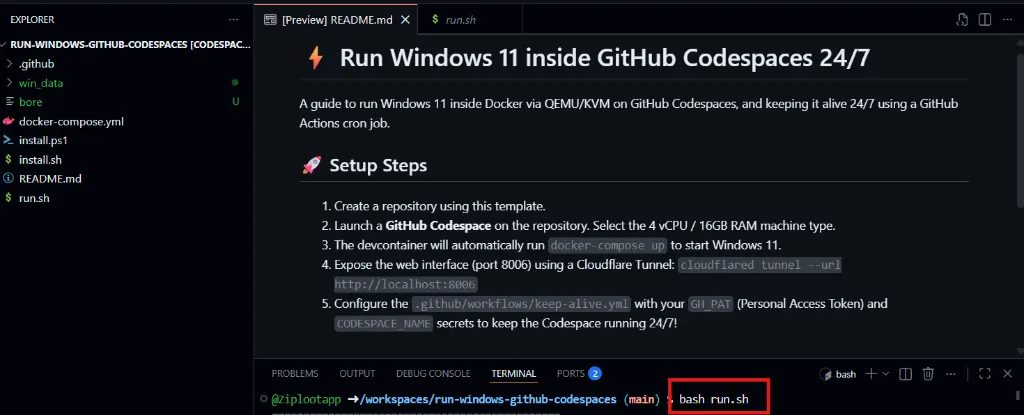
Figure 1: Run bash run.sh in the VS Code terminal inside GitHub Codespaces to launch the Windows 11 container.
Step 2: Connect to Port 8006 (Windows 11 Web Desktop)
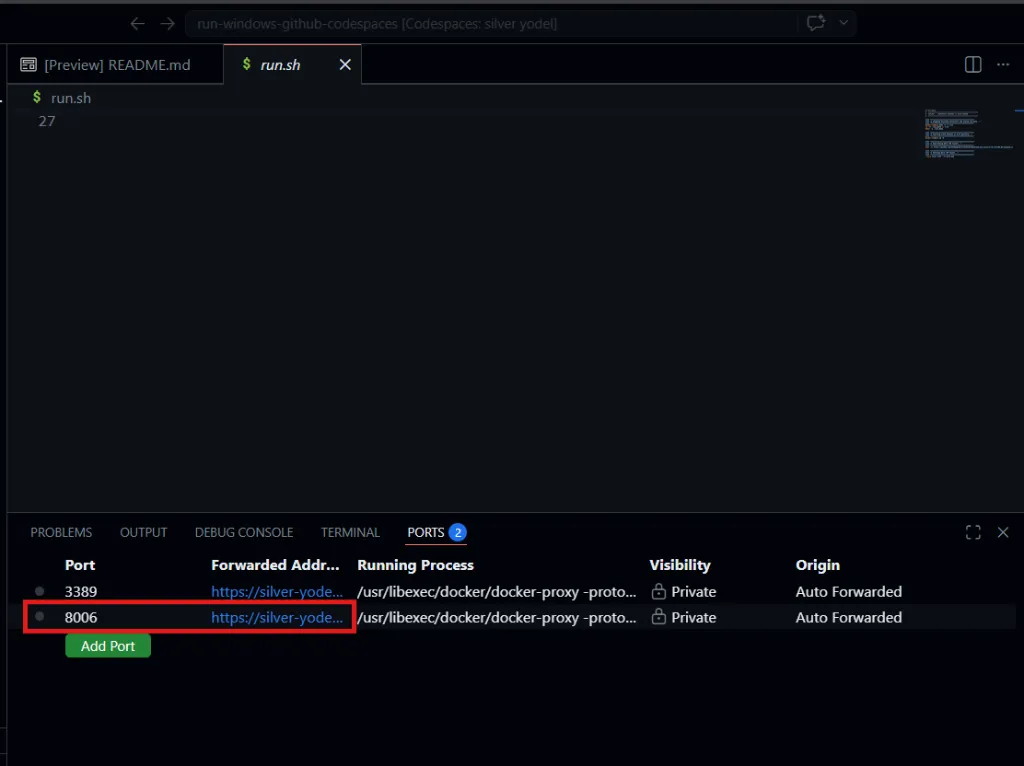
Figure 2: In the Ports tab, click the Globe 🌐 icon next to Port 8006 to launch Windows 11 Web Desktop.
Step 3: Windows 11 Booting Live in Browser
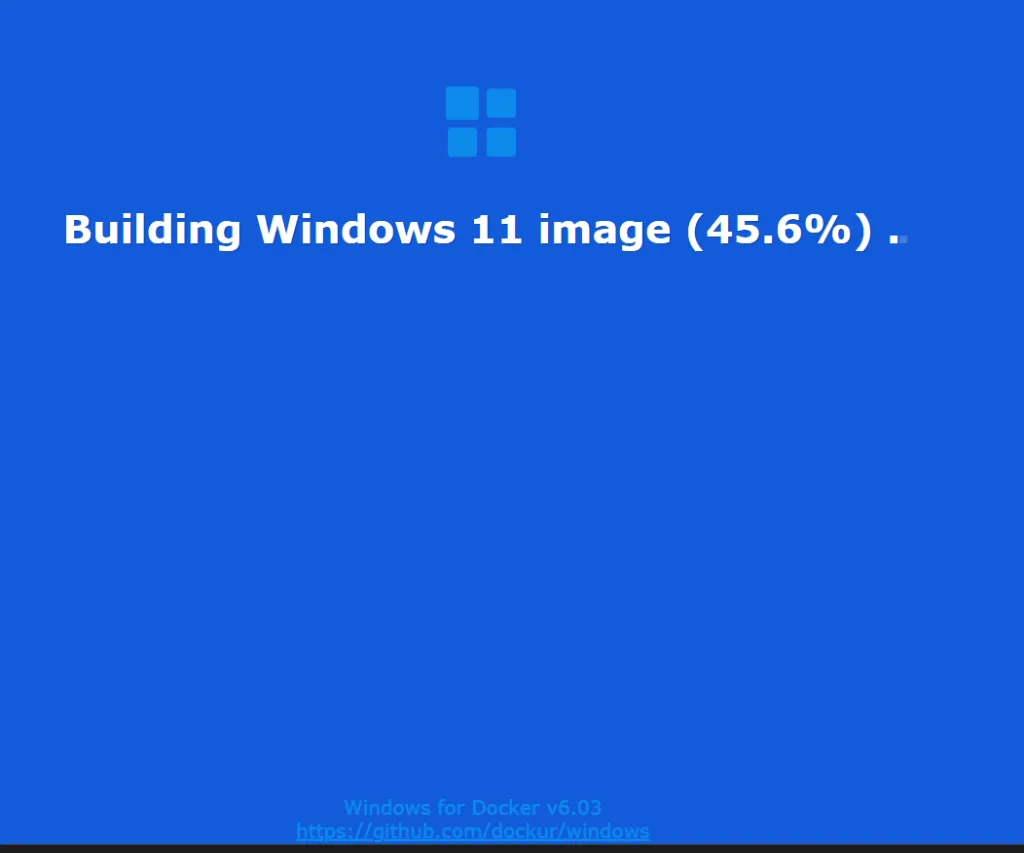
Figure 3: Live Windows 11 cloud instance building and initializing inside HTML5 Web GUI.
Step 4: Verified Windows 11 Performance & AnyDesk Connection
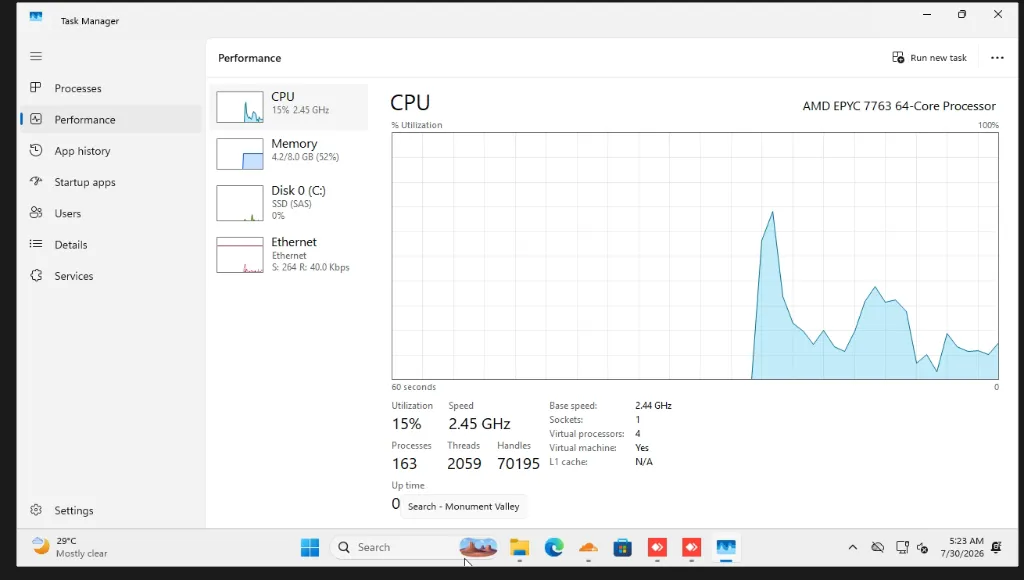
Figure 4: Task Manager displaying AMD EPYC 7763 64-Core Processor (4 vCPUs, 8GB RAM) with AnyDesk & Cloudflare remote access active.
🛠️ Codebase & Devcontainer Setup
Below is the complete configuration code for setting up Docker-in-Docker Windows 11 on GitHub Codespaces:
Step 1: Create docker-compose.yml
services:
  windows:
    image: dockurr/windows
    container_name: windows
    environment:
      VERSION: "11"
      RAM_SIZE: "6G"
      CPU_CORES: "4"
      DISK_SIZE: "64G"
      USER: "docker"
      PASSWORD: "docker"
    devices:
      - /dev/kvm
    cap_add:
      - NET_ADMIN
    ports:
      - "8006:8006"
      - "3389:3389/tcp"
      - "3389:3389/udp"
    volumes:
      - ./win_data:/storage
    restart: always
Step 2: Create Auto-Start Script (run.sh)
#!/bin/bash
echo "========================================================"
echo " ⚡ ZIPLOOT - STARTING WINDOWS 11 CLOUD VM IN DOCKER"
echo "========================================================"
docker compose down -v || true
mkdir -p ./win_data
docker compose up -d

echo "[SUCCESS]: Windows 11 VM Started on Port 8006!"
⚙️ 24/7 Keep-Alive Automation & Secrets Setup Guide
By default, GitHub Codespaces shuts down after 30 minutes of idle inactivity to conserve computing quota. To run your Windows 11 Cloud VM continuously 24/7 without shutdowns, configure the automated GitHub Actions Keep-Alive workflow in your repository:
Step 1: Open Repository Secrets Settings
Navigate to your GitHub repository (must be set in your Windows Codespaces repo, e.g. github.com/your-username/run-windows-github-codespaces). Go to Settings > Secrets and variables > Actions, and click the green New repository secret button:
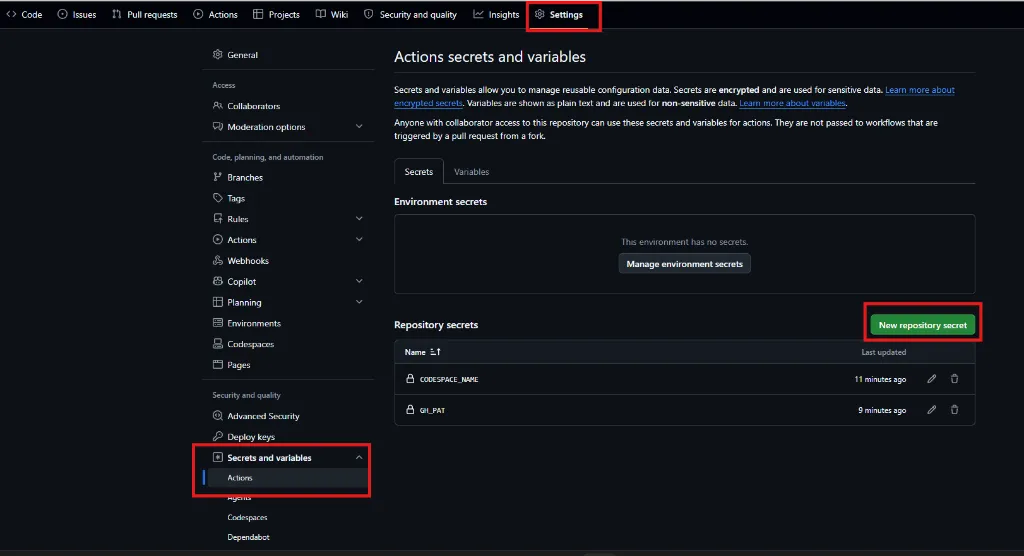
Figure 5: Navigate to Repository Settings > Secrets and variables > Actions and click New repository secret.
Step 2: Add Required Repository Secrets
You must add exactly 2 repository secrets using the secret creation form:

Figure 6: Fill in the Name * and Secret * fields for CODESPACE_NAME and GH_PAT.
🔒 Secret Configuration Details (Use Placeholders):
1. First Secret (CODESPACE_NAME):
- Name *:
CODESPACE_NAME - Secret *: Your unique Codespace name from your browser URL (e.g.,
random-name-x1y2z3a4b5c6). Do NOT include-8006.app.github.dev.
2. Second Secret (GH_PAT):
- Name *:
GH_PAT - Secret *: Your Personal Access Token generated from
github.com/settings/tokenswithcodespaceandworkflowpermissions (e.g.,ghp_xxxxxxxxxxxxxxxxxxxxxxxxxxxxxxxxxxxx).
Step 3: Verified 24/7 Keep-Alive Execution
Once both secrets are saved, the GitHub Actions cron job automatically pings your Codespace every 20 minutes to reset the idle timer and keep your Windows 11 VM online 24/7:
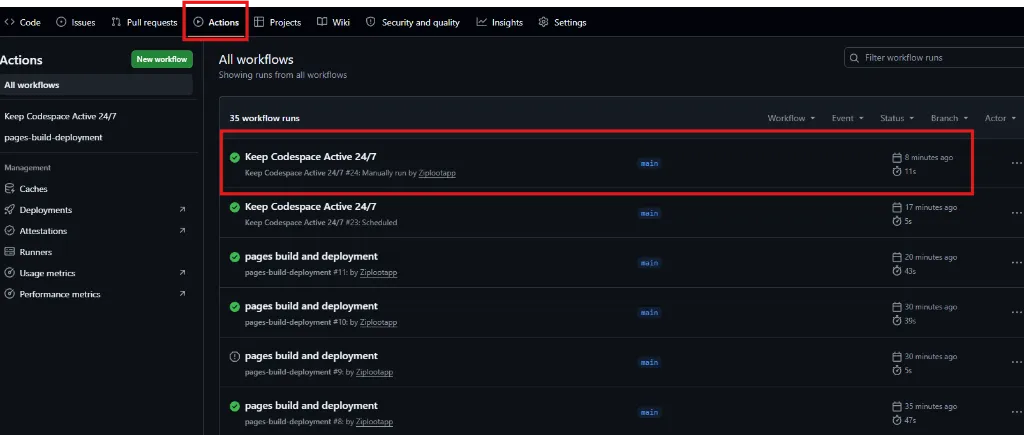
Figure 7: Live Actions workflow run confirming successful 24/7 keep-alive pings.
💡 3 Advanced Fallback Options for Maximum Uptime & Performance
If automated Keep-Alive pings encounter GitHub system delays during peak hours, apply these 3 recommended fallback solutions to maintain continuous access and eliminate idle shutdowns:
1. Maximize GitHub Codespaces Idle Timeout to 4 Hours (Direct Link)
By default, GitHub shuts down idle sessions after 30 minutes. You can increase your personal account's idle timeout up to the maximum 4 hours (240 minutes) limit:
👉 Direct Settings Link: https://github.com/settings/codespaces — Navigate to Default idle timeout and select 4 hours (240 minutes).
2. Connect via VS Code Desktop App (Persistent SSH Tunnel)
Instead of relying on browser tabs, open your codespace using the official VS Code Desktop application with the GitHub Codespaces Extension. VS Code Desktop maintains a direct SSH tunnel connection that remains active and resilient against network fluctuations.
3. Select Lightweight OS in Devcontainer Dropdown Menu
When creating your Codespace, open the Dev container configuration dropdown menu and choose a lightweight OS option: Windows Tiny 11, Windows XP, or Windows Server 2019/2022 for instant 10-second boots and minimal resource usage.
💬 Frequently Asked Questions (FAQs) & Solutions
Q1: How do I connect to Windows 11 via AnyDesk or Microsoft RDP?
You can install AnyDesk inside your Windows 11 cloud desktop for 100% direct copy-paste and remote control, or connect via Microsoft Remote Desktop (mstsc.exe) using username docker and password docker on Port 3389.
Q2: Is GitHub Codespaces 100% free without credit cards?
Yes! Every standard GitHub account receives 120 free core-hours monthly on GitHub Codespaces with zero credit card requirements.
Q3: How do I copy and paste text into the Web Browser Desktop?
Use the floating noVNC menu bar on the left, click the Clipboard (📋) icon, paste your text into the box, and press Shift + Insert or Ctrl + V inside Windows 11, or connect via AnyDesk/RDP for native OS clipboard sharing.