Technical Summary
Using premium Web UIs like ChatGPT Plus or Claude Pro can cost upwards of $20 per month, while direct API calls can accumulate rapidly if you stream high-volume tokens. By running LibreChat (a feature-rich, open-source AI chatbot hub) and connecting it to free high-speed API endpoints such as Groq Cloud, OpenRouter Free Tier, or Hugging Face Inference API, you can construct a self-hosted premium AI Web UI with zero licensing or subscription costs. This guide walks you through setting up LibreChat via Docker and configuring it with free API keys. 💬 FAQs & Solutions ↓
Why Self-Host LibreChat with Free APIs?
- Save $20/Month Subscription Fees: Avoid recurring costs by utilizing free-tier developer API keys.
- Premium Feature Parity: Includes chat history search, multi-model side-by-side comparison, system prompt editing, and image generation integration.
- Complete Data Privacy: All conversation logs are stored locally in your database instead of third-party cloud servers.
- Multi-User Authentication: Set up secure credentials for friends or team members on a single hosting server.
System Architecture: LibreChat Multi-Provider Setup
LibreChat acts as a proxy gateway. The web application front-end communicates with a Node.js server backed by a MongoDB database. The server sends user prompts directly to different AI model APIs and streams the token response back to the client:
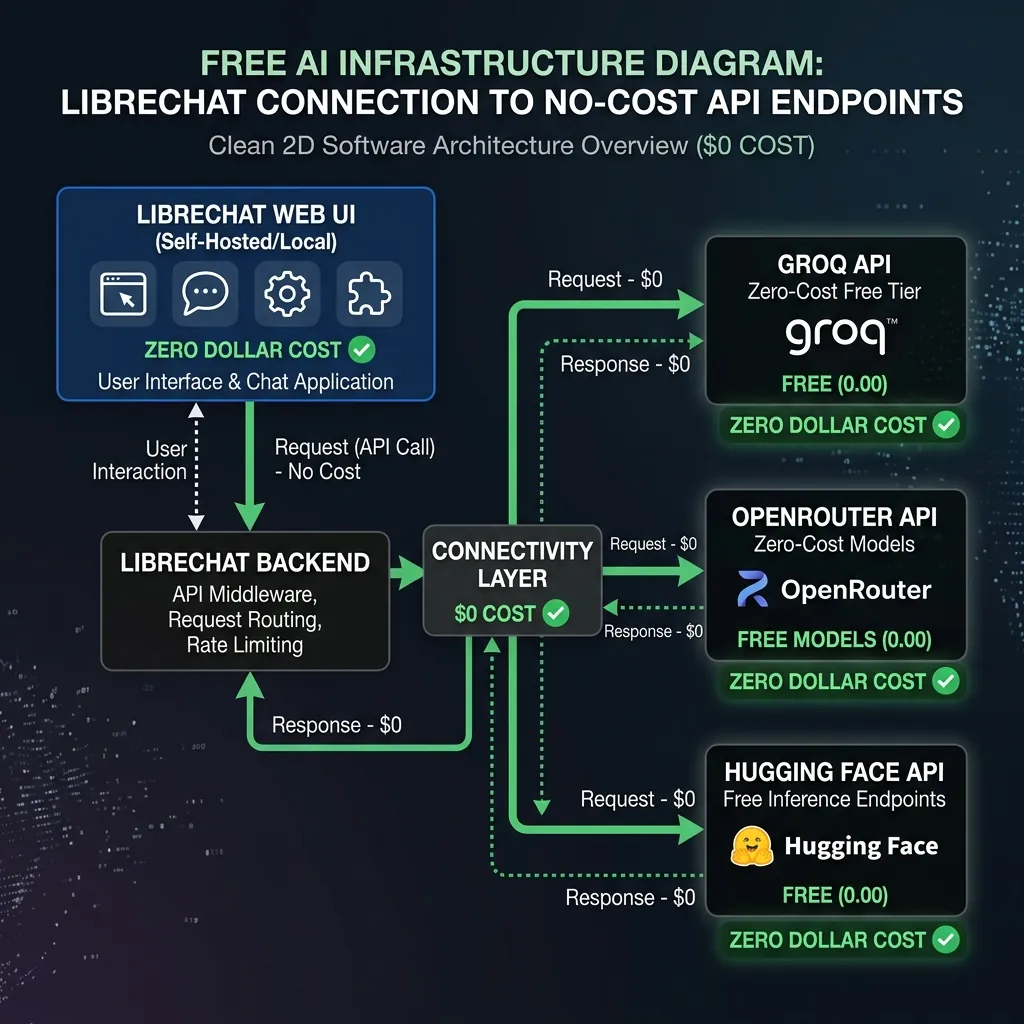
System architecture showing LibreChat routing requests to free endpoints.
Step 1: Claiming Free API Keys (Groq, OpenRouter, Hugging Face)
To access AI models for free, obtain API keys from these three developer portals:
1. Groq Cloud (Ultra-Fast Llama 3.3 & Mixtral)
Go to the Groq Console, sign up, click on API Keys, and generate a new key. Groq provides ultra-high speeds (up to 1,000 tokens/sec) on their LPU hardware.
2. OpenRouter (Access Claude 3.5 & DeepSeek R1)
Sign up at OpenRouter. Go to Settings > Keys, create a key, and select free models (such as deepseek/deepseek-r1:free or google/gemini-2.5-flash:free).
3. Hugging Face (Open-Source Models)
Sign up at Hugging Face, go to Settings > Access Tokens, and generate a free Read Token.
Step 2: Configuring librechat.yaml with Custom Endpoints
Open VS Code or any text editor, create a file named librechat.yaml in your project directory, and paste the configuration below to declare custom providers:
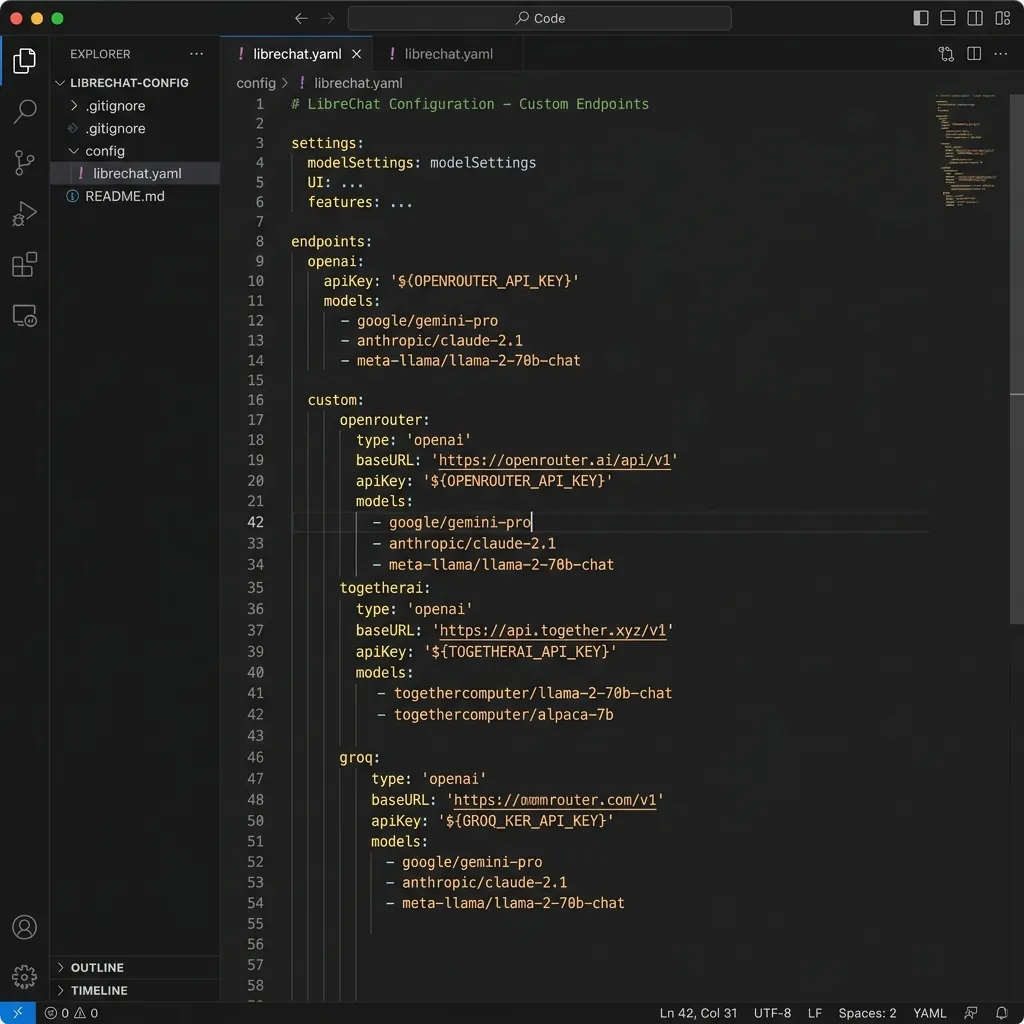
VS Code configuration displaying custom endpoints inside librechat.yaml.
Copy & Paste this config:
# librechat.yaml

version: 1.1.5

config:

 endpoints:

 custom:

 - name: "Groq"

 apiKey: "${GROQ_API_KEY}"

 baseURL: "https://api.groq.com/openai/v1"

 models:

 default: ["llama-3.3-70b-versatile", "mixtral-8x22b-instruct"]

 fetch: false

 - name: "OpenRouter"

 apiKey: "${OPENROUTER_API_KEY}"

 baseURL: "https://openrouter.ai/api/v1"

 models:

 default: ["google/gemini-2.5-flash:free", "deepseek/deepseek-r1:free"]

 fetch: true
Step 3: Launching LibreChat with Docker Compose
Create a docker-compose.yml file to spin up LibreChat and MongoDB containers together:
Create docker-compose.yml:
version: '3.8'

services:

 api:

 image: ghcr.io/danny-avila/librechat:latest

 ports:

 - "3080:3080"

 environment:

 - HOST=0.0.0.0

 - PORT=3080

 - MONGO_URI=mongodb://mongodb:27107/librechat

 - GROQ_API_KEY=your_groq_key_here

 - OPENROUTER_API_KEY=your_openrouter_key_here

 volumes:

 - ./librechat.yaml:/app/librechat.yaml

 depends_on:

 - mongodb

 mongodb:

 image: mongo:latest

 volumes:

 - mongodb_data:/data/db

volumes:

 mongodb_data:
Open your terminal, navigate to the folder containing these files, and run the launch command:
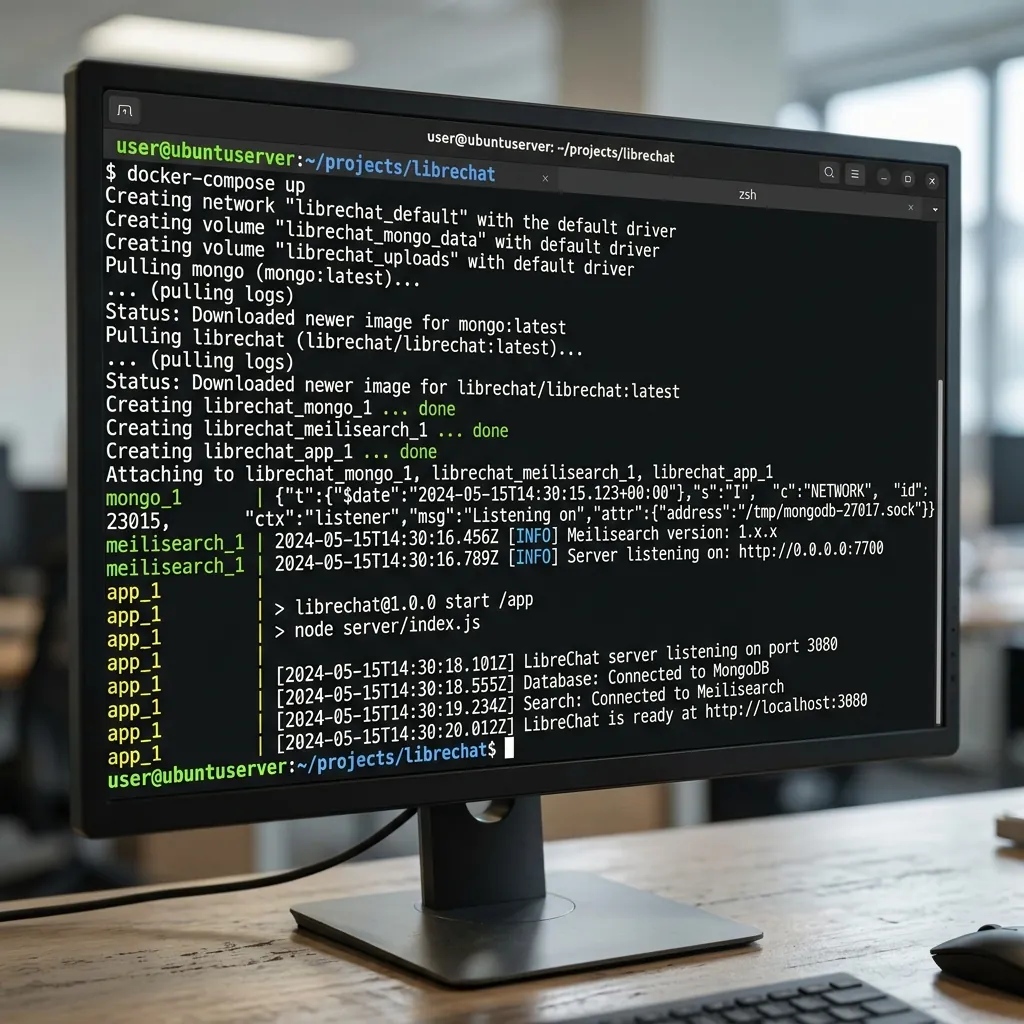
Terminal output showing LibreChat containers starting up successfully.
docker compose up -dStep 4: Testing Free AI Models in the Web UI
Once the container status is online, open your web browser and navigate to http://localhost:3080. Sign up for your admin credentials, select a free AI model from the top dropdown, and begin prompting:
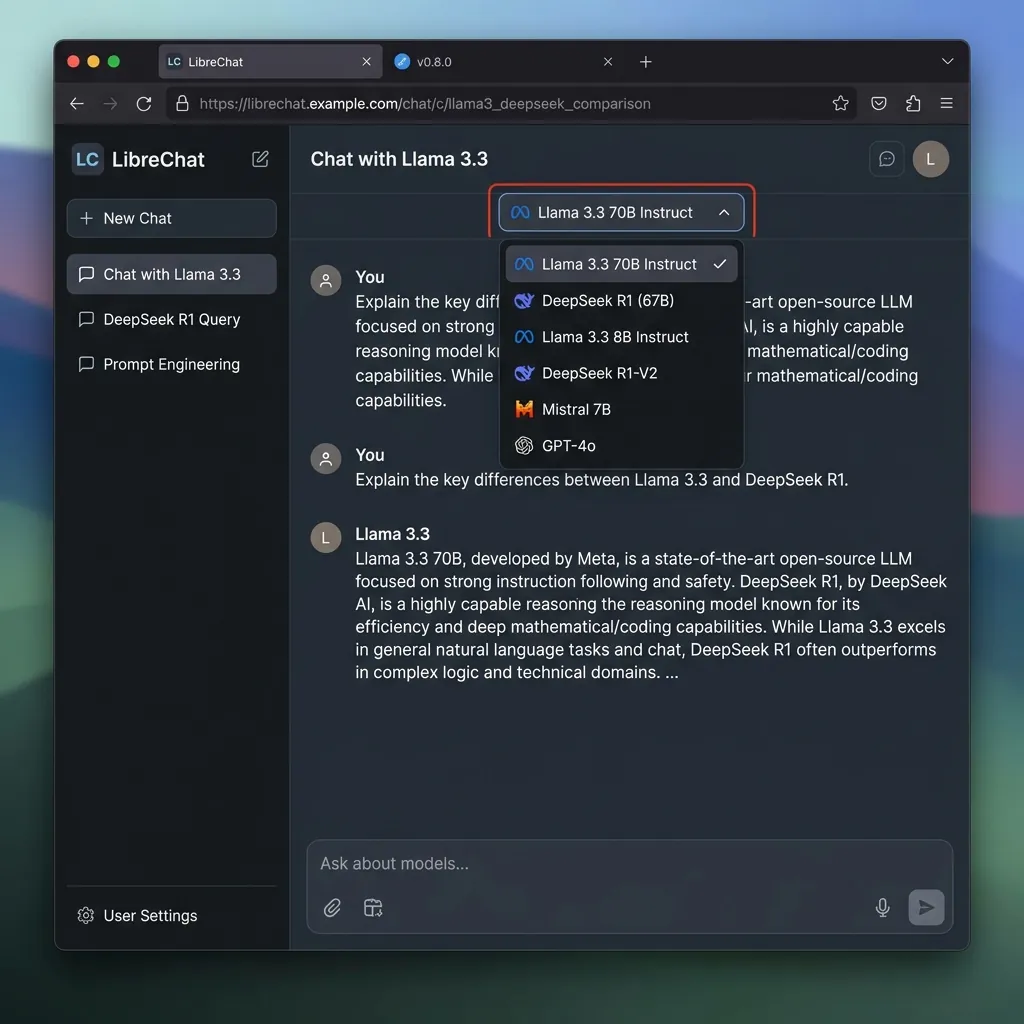
LibreChat dark UI displaying ad-free and subscription-free generative chat.
Free API Providers Spec & Performance Comparison
| Provider | Average Speed | Key Free Models | Free Limit / Quota |
|---|---|---|---|
| Groq Cloud | 800 - 1,000 tokens/sec | Llama 3.3 70B, Mixtral 8x22B | 14,400 Requests/day |
| OpenRouter | 50 - 100 tokens/sec | DeepSeek R1, Gemini 2.5 Flash | Unlimited (Model dependent) |
| Hugging Face Serverless | 30 - 60 tokens/sec | Phi-4, Qwen 2.5Coder | Rate limited on demand |
Frequently Asked Questions (FAQs)
Does OpenRouter require a credit card for free tier models?
No. OpenRouter allows you to call free models (suffixed with :free) with a zero-balance account, requiring only a basic email sign-up.
Can I run LibreChat permanently on a remote server?
Yes. You can clone this configuration on a free-tier cloud instance (e.g. AWS EC2 free tier or Oracle Cloud Free ARM instance) to access your AI platform from anywhere in the world.
Final Verdict
By self-hosting LibreChat and routing requests to free endpoints like Groq and OpenRouter, you secure a premium OpenAI-style interface for $0. Save $240+ yearly on subscriptions while reclaiming data privacy.
Disclaimer: This article is strictly for educational purposes and does not constitute technical or financial advice. Always adhere to platform usage terms.