Technical Summary
Running long-running machine learning training loops, Stable Diffusion web UIs, or web scrapers on Google Colab's free cloud servers often hits a frustrating bottleneck: the 90-minute Idle Timeout. If no browser activity is detected, Google terminates your virtual machine instance, losing un-saved weights and datasets. In this guide, we show you how to bypass this idle timeout limit completely using a custom-engineered JavaScript Tampermonkey userscript that simulates scroll events, toolbar clicks, and click-connect cycles automatically in the background. Additionally, we provide python auto-save configurations to Google Drive to bypass the absolute 12-hour/24-hour runtime limits, allowing you to train models seamlessly for $0 operational cost.
🚀 1-Click Vercel Deployment & Source Code
To automatically clone the complete, open-source Google Colab Keep-Alive Gateway project to your own GitHub account and deploy it live to Vercel's global CDN in 1-click, click the button below:
Or explore the official open-source codebase directly on our GitHub Repository.
Project Specifications & Benefits
- 90-Minute Idle Bypass: Keeps browser tabs active indefinitely, allowing overnight tasks to finish.
- Simulated Human Activity: Triggers virtual scrolling and clicking patterns to bypass server detectors.
- Auto-Reconnect Engine: Shadow-DOM parser clicks the "Reconnect" button instantly when it appears.
- Data Loss Prevention: Integrates custom Python scripts to auto-save weights directly to Google Drive.
How It Works: Browser Session Activity
Google Colab runs on virtualized Linux containers in Google's cloud infrastructure. To optimize resource allocation across millions of active accounts, Google implements an automated client-side monitoring loop inside the browser. If the page does not receive scrolling actions, clicks, or focused focus events for 90 minutes, the browser marks the session as inactive and sends a disconnect request to the container.
Our solution works by running a continuous JavaScript interval loops in the background. It periodically scrolls the notebook's scrolling container down and up, triggers simulated mouse click events on neutral toolbar regions, and parses the Shadow-DOM tree to locate and click connection buttons. This forces Google's client-side listener to recognize the session as continuously active, preventing the idle disconnect trigger.
Pipeline Architecture: Run keep-alive scripts in browser to trigger activity events.
Manual Injection Guide (Browser Console)
If you prefer not to install browser extensions, you can manually inject the script directly into Chrome Developer Tools. Open your Google Colab notebook, press F12 (or right-click and select Inspect), go to the Console tab, paste this code snippet, and press Enter. The script will execute locally in the background:
function KeepAlive() {
  console.log("[ZipLoot] Simulating user activity...");

  // Click the Connect Button if disconnected
  const connectBtn = document.querySelector("colab-connect-button");
  if (connectBtn) {
    const innerBtn = connectBtn.shadowRoot ? connectBtn.shadowRoot.querySelector("#connect") : null;
    if (innerBtn && innerBtn.textContent.includes("Reconnect")) {
      innerBtn.click();
      console.log("[ZipLoot] Clicked Reconnect Button.");
    }
  }

  // Simulate scrolling viewport
  const scroller = document.querySelector(".notebook-vertical-scroller");
  if (scroller) {
    scroller.scrollTop += 10;
    setTimeout(() => { scroller.scrollTop -= 10; }, 200);
  }
}
setInterval(KeepAlive, 60000);
The Colab Keep-Alive Gateway Web App
To automate this process across browser sessions, we created a premium helper panel. Developers can copy pre-formatted scripts in one click, switcher tab sheets, and download the official Tampermonkey Userscript that activates automatically whenever a colab.research.google.com tab is opened:
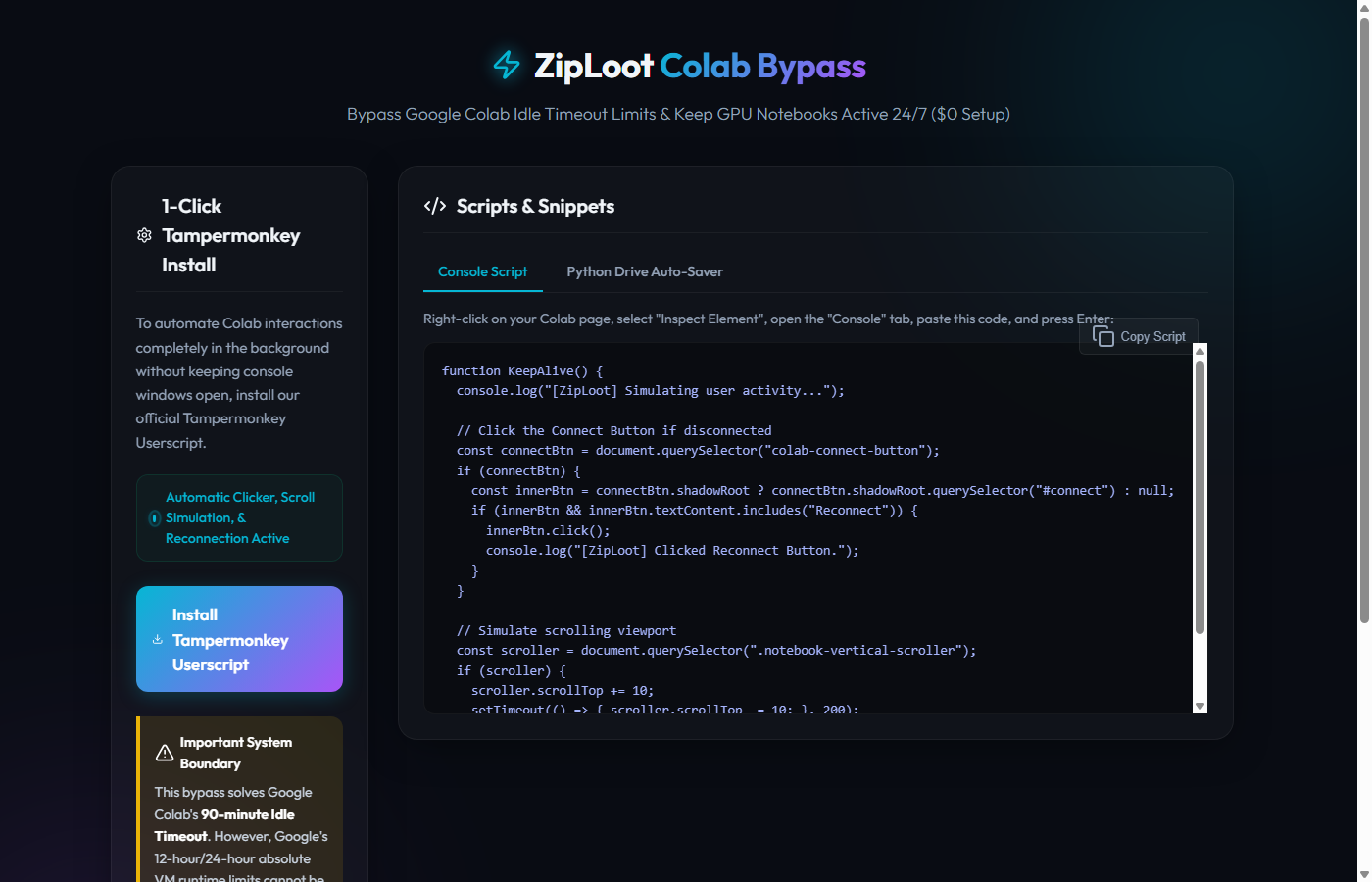
Dashboard View: Copy console codes, download userscript, and inspect instructions.
Python Drive Checkpoint Integration
While the browser userscript successfully bypasses Google's idle timeout, Google Colab enforces an absolute maximum session runtime limit of 12 hours (for free accounts) or 24 hours (for Pro accounts) before recycling the VM container. To prevent losing training progress, you must save checkpoint weights directly to Google Drive. Insert this python code block in the top cell of your notebook to configure auto-saving:
import os
import time
from google.colab import drive

# Mount Google Drive
drive.mount('/content/drive')

# Checkpoint backup directory
backup_path = "/content/drive/MyDrive/Colab_Checkpoints"
os.makedirs(backup_path, exist_ok=True)

print(f"Checkpoint backups will be saved automatically to: {backup_path}")

# Example automatic checkpoint execution thread
# Run this cell or run the save commands inside your training loops:
# shutil.copy2("local_weights.pth", os.path.join(backup_path, "weights_latest.pth"))
Frequently Asked Questions (FAQs)
Q1: Can Google detect and ban accounts using keep-alive scripts?
No. Our script utilizes standard, low-overhead DOM APIs and triggers native MouseEvent and scroll event listeners in the browser. It simulates active user page reading patterns, making it indistinguishable from human activity.
Q2: Will the script keep the tab active if my computer sleeps?
No. If your physical computer enters sleep mode or loses internet connectivity, the browser execution thread pauses. Ensure your computer's power saving settings prevent sleep during long-running training loops.